Passkeys & Biometric Security
Passkeys & Biometric Security - Step-by-step user manual, real-world practical use cases, and automation workflows for Siegfried Outreach Platform.
Passkeys & Biometric Security (WebAuthn / FIDO2)
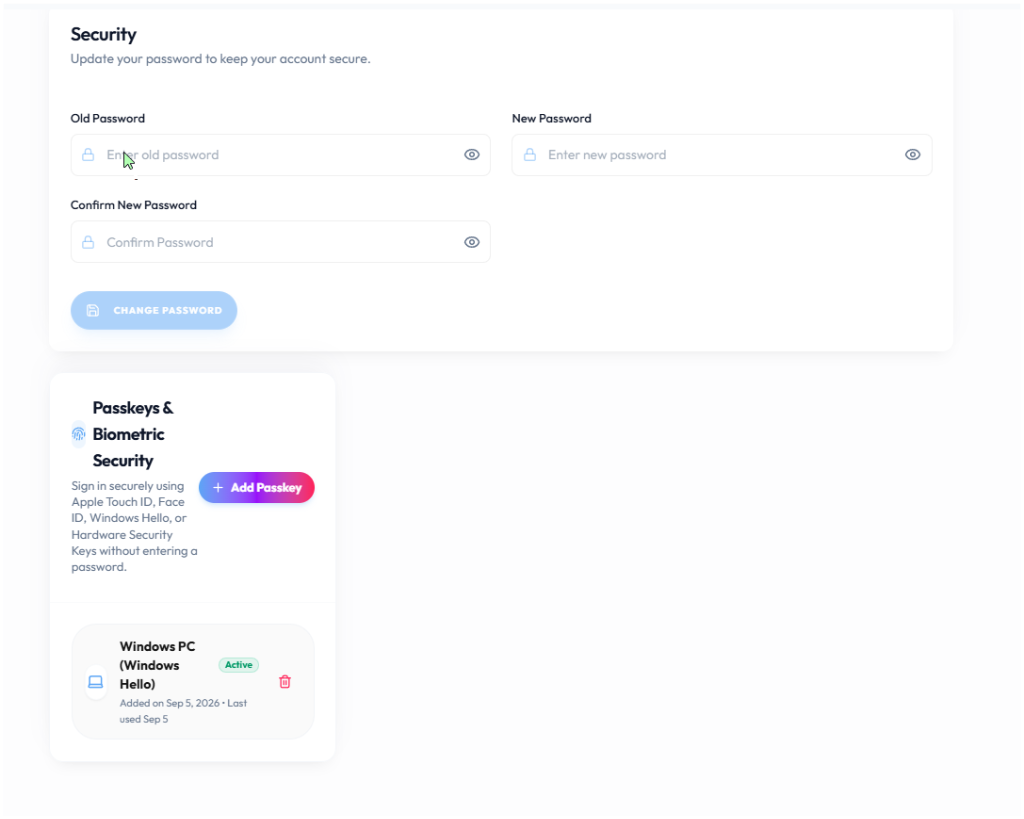
🔐 Biometric Security Screenshot: WebAuthn Touch ID, Windows Hello, and Hardware Security Key manager on /profile.
Siegfried Outreach supports enterprise-grade Passkey authentication, allowing you to log into your account in 1 second using your device's biometric sensors (Touch ID, Face ID, Windows Hello, or Hardware USB Security Keys) without typing passwords.
🔐 How to Register a Passkey:
- Go to your Profile Page (
/profile). - Scroll to the Passkeys & Biometric Security card.
- Click Add New Passkey.
- Your browser will prompt for your device biometric (fingerprint or face scan).
- Once verified, your device is saved and displayed with an Active badge.
🚀 Logging In with Passkey:
- On the login screen (
/login), click Sign in with Passkey / Biometrics. - Scan your fingerprint or face to be logged in immediately.
🏢 Real-World Industry Use Cases & Practical Examples (वास्तविक उद्योग उपयोग और उदाहरण)
🔐 1. Digital Marketing Agency with Remote Team Members
- Problem: Remote employees sharing passwords across insecure networks risk credential stuffing and phishing attacks.
- Solution:
- Every team member registers their laptop's Apple Touch ID or Windows Hello passkey in their Profile (
/profile). - Employees log into the dashboard in 1 second using their fingerprint without needing passwords or SMS OTP codes.
- If an employee leaves the agency, their passkey is revoked instantly with 1 click from Admin Settings.
- Every team member registers their laptop's Apple Touch ID or Windows Hello passkey in their Profile (
- Result: 100% protection against phishing attacks and lightning-fast employee login experience.
🏷️ Related Feature Keywords & Search Tags (संबंधित कीवर्ड्स और टैग्स)
#Passkeys #WebAuthn #TouchID #FaceID #WindowsHello #FIDO2 #PasswordlessLogin #BiometricAuthentication
Web Pages & Policy Document CMS
Build and publish custom landing pages, Terms of Service, Privacy Policies, and help articles from the built-in CMS.
Team Roles & Permissions Matrix
Team Roles & Permissions Matrix - Step-by-step user manual, real-world practical use cases, and automation workflows for Siegfried Outreach Platform.